
- This will open up a new tab asking if you’d like to let Helium connect to your Figma account. (Note: Helium uses OAuth to connect to figma to read files/metadata). Click “Yes” to sync your account and be redirected back to Figma.
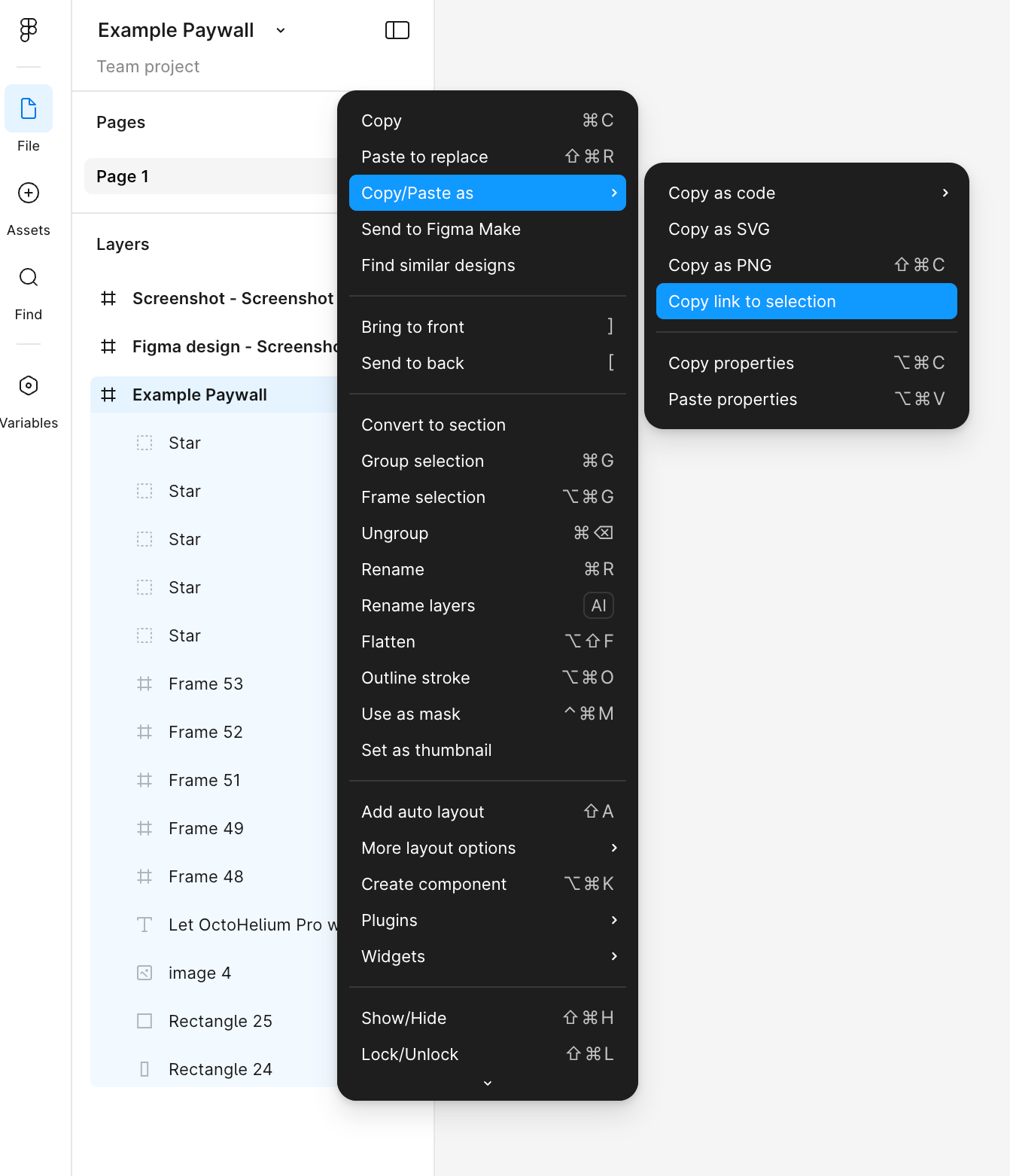
- Next you’ll be prompted to paste in a layer link to import. To find this URL, go to your figma file and click on the layer you’d like to import into Helium. You can do by clicking the layer on the sidebar, clicking “Copy/Paste”.
- Important: make sure to copy the link to the entire layer, and not a specific image/asset in figma.
-
Add in product ids and an optional description. Text added to the description will also be fed to Helium’s AI to help guide the figma import. You can add things like:
- “Make sure to use relative layouts”
- “Make a dark version of this paywall”
- “Make sure to use mobile friendly versions of the fonts”
- After submitting, Helium’s AI will get to work recreating your paywall perfectly, regardless of what layout settings are applied to the layer. The paywall will be available to view/edit in the editor. Happy paywall testing!